Wednesday, May 31, 2023

New PrintGiant.com is live!


We are thrilled to announce the launch of our brand-new PrintGiant.com, designed with you in mind! Our team has worked hard over the past several months to create a more enjoyable and efficient experience for all your printing needs. We have completely revamped our dashboard, quoting tool, category hierarchy, and product builder to make your journey with us smoother than ever before. Read on to discover the exciting enhancements we've made just for you!

A Simpler Dashboard


We listened to your feedback and agree that sometimes less is more. Our new dashboard is designed to be more user-friendly and easy to navigate, with less clutter and a cleaner layout. 


The profile, password, and account actions are now front and center, allowing you to access and manage your account settings quickly. The dozen or so buttons have now been reduced to three big buttons focusing on what you need most; Orders, Quotes, and Addresses—making finding and managing your printing projects effortless. As an extra convenience, you no longer have to click through multiple screens and scroll lists to access your open projects. All of your active orders and quotes are now displayed directly on the dashboard, providing easy access and a clear overview of your ongoing projects at a glance.

Improved Quoting Tool


We can be honest here. Our last quoting tool was atrocious. It was complicated, confusing, and nobody wanted to use it. So if you're one of those people, you'll be happy to know that we have significantly enhanced our quoting tool, making it super convenient and easy to use. Now, you have the flexibility to start your quote from an existing product or begin from scratch, depending on your specific requirements. Plus, our upgraded tool allows you to request multiple products and options within a single quote, saving you time and effort when planning complex print projects. These improvements will streamline the quoting process, enabling you to receive faster and more accurate quotes tailored to your needs.

Better Category Hierarchy


We've revamped our category hierarchy to make browsing our extensive range of print products even easier. Our new structure has three levels: category groups, categories, and products. This reorganization simplifies the browsing experience by allowing you to narrow down your search more effectively.


For example, under the category group "Marketing Materials," you'll find categories such as "Brochures," "Flyers," and "Postcards." Within each category, you can then explore individual products and their variations. This improved hierarchy will help you quickly find the exact print products you need, making your shopping experience more seamless and enjoyable.

Easier Product Calculator


Our new and improved product calculator has been designed to make selecting your custom print options a breeze. We've simplified the language throughout the product calculator, ensuring that even those with limited printing knowledge can easily understand the available options. We've also focused on presenting essential options for each product, streamlining the customization process, and removing clutter from unpopular choices. 
Other exciting new features of our product calculator are the estimated completion date, which provides you with a clear timeline for your project, and the ability to get real-time shipping quotes, making it easier to plan your shipping and delivery needs accurately. 

Try It Out


We invite you to explore our new website and experience the improved features and user-friendly design. To get started, click here and browse our wide range of print products and services. And to celebrate the launch of the new website and as a special thank you for your continued support, from June 1st to June 30th, 2023, we're offering a limited-time discount code: NEWWBST2310 for 10% off your first order on our new platform.

Don't miss out on this opportunity to enjoy a smoother, more efficient printing experience with our enhanced website. We're confident you'll love the improvements we've made, and we can't wait to continue serving you with the best possible service.

Always Improving


As we continue to improve and enhance our website, we value your feedback and suggestions. If you have any comments or suggestions or encounter any issues while using our new website, please don't hesitate to reach out.

Thursday, May 2, 2019

Proofing Quick Guide: How to proof your artwork


One of the most valuable aspects to the design process is proofing— getting a chance to review and leave feedback on your artwork. We do not send anything to print or consider it finalized until you give us the thumbs up.

We make proofing easy with a digital portal and tools to help you annotate your artwork on the spot. Your feedback will be sent directly to the designer, so they can make the changes easily and quickly.


Here is how you proof your artwork:


Accessing your proof.
When your design is ready, you will receive an email to let you know your proof is ready. Click on the ”VIEW PROOF” button within the review email and the proof will automatically open in a web browser.


Note: We recommend using a desktop or laptop computer to review your artwork.
For reviewing a proof on a mobile device, please download GoProof mobile app using the QR codes below.


Providing feedback.
Click “ADD COMMENT” (top bar, centered) and pick the best tool from the drop-down menu to annotate your design. Your comments will show up on the right side of the page under the “comments” tab, where you and your designer can see them. Make sure to mark all of your comments before sending the project back for changes.


R
equesting changes.
After you have marked all of your changes, click “REQUEST CHANGES”. This ends the proofing round and lets your designer know that you have reviewed your artwork and are ready for the next revision round.

Your designer will make your requested changes and re-submit your artwork to review.


Note: THIS IS A MANDATORY STEP. In order to let your designer know you are ready for changes, you must click "REQUEST CHANGES," otherwise your project will remain in-review.


Approving your design.
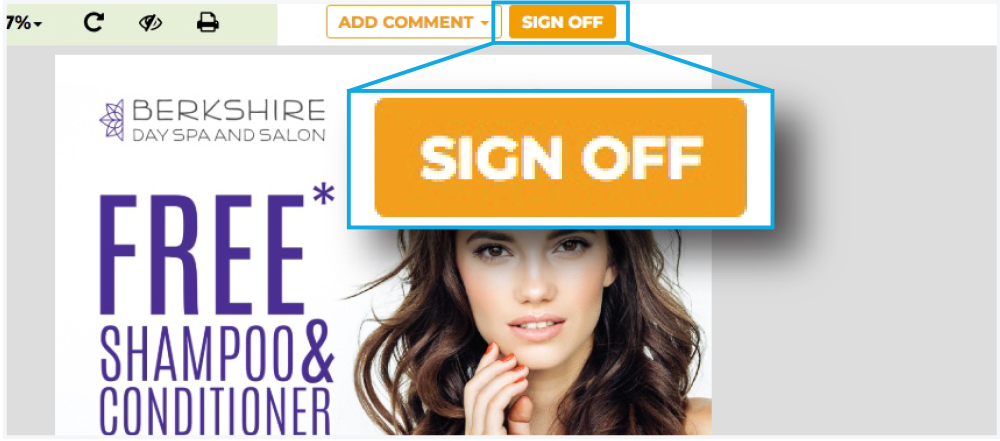
If you reviewed your artwork and you are ready to issue an approval, click “SIGN OFF”. 

This ends the proofing process and completes your project.


Note: THIS IS A MANDATORY STEP. By signing off on your document, you are giving us final approval and closing out the project. Do not click "finished" or "completed" if you are approving the project.


Tuesday, April 30, 2019

Using a Blank Template


We make it easy to provide your own graphic design for printed products by supplying product templates for every product, in every size. Our templates are designed specifically for our system and take into account many things that you or your designer may not be aware of. These templates will help speed your jobs through production by minimizing common errors and should be used every time you submit your artwork to print.

This guide will teach you how to use our supplied templates.


1) Download your template from the products page
On the left side of the products page, click the “templates” tab (next to the “product info”).


2) Select the product size
Simply click the size product you would like to design and a vector based PDF template will automatically download.


3) Open the template in your design software
Our templates are vector-based and can be opened in all Adobe CC design software.


All templates will indicate the following:
• Artwork size (with bleeds)
• Finished Size
• Cut Line (red). This is where your artwork will be cut. Anything outside this line is considered your bleeds.
• Safety Line (blue). All important information must be inside this area.
• Fold Lines (green) if applicable


4) Design your artwork on layers ON TOP of the template
The template should always be your base layer. Make sure your artwork extends past the bleeds and covers the full canvas.


5) Save your artwork
When you are finished, delete the template layer and export your artwork as a 300dpi, flattened PDF.


Sunday, March 3, 2019

Rounded Corners


Want an edge? Round your corners! Rounded corners transform your basic square corner by rounding them out, giving the corner a smooth embellishment.


Standard options for rounded corners include a 1/8 inch radius and a 1/4 inch radius option. Custom corners are available too, just contact us!


And you can round any edge you want!
Standard corner rounding includes 2 or 4 corners.


Tuesday, January 29, 2019

EconoLine Display Products

image of EconoLine products, EconoRollup, EconoWall, EconoThrow

Our newly launched EconoLine products offer quality at affordable prices! The EconoLine concept is simple— we provide quality products with fixed options, and you save from our increased efficiency.

The initial EconoLine launch includes 6 Trade Show products and 1 Outdoor Display Flag, but we plan on adding a variety of categories and products in the months to come. EconoLine products come with preset specifications which are not customizable. Additionally, EconoLine items come with free UPS Ground shipping to the contiguous lower 48 states.

Initially, the artwork options will be limited to uploading print-ready files, or adding our custom graphic design service, but will eventually expand to include the use of the online designer tool.

Initial Product Lineup:
  • EconoRollup: A retractable banner stand with 33"x81" 9oz. Polyester fabric UV printed banner and carry bag.
  • EconoTube - Flat: A straight trade show display wall that comes in 8' and 10' widths. The hardware includes a tube frame with feet, which the fabric graphic slips over and zips closed. Comes with a soft canvas carry bag.
  • EconoTube - Curve: A curved trade show display wall that comes in 8' and 10' widths. The hardware includes a tube frame which the fabric graphic slips over and zips closed. Comes with a soft canvas carry bag.
  • EconoWall - Flat: A straight trade show display wall that comes in 8' and 10' widths. The hardware is an expanding matrix that locks in place. The fabric graphic is affixed to the frame with velcro. Comes with a soft canvas carry bag.
  • EconoWall - Curve: A curved trade show display wall that comes in 8' and 10' widths. The hardware is an expanding matrix that locks in place. The fabric graphic is affixed to the frame with velcro. Comes with a soft canvas carry bag.
  • EconoThrow: A 4-sided table throw that comes in two widths to accommodate 6' or 8' tables.
  • EconoFlag: A 16' tall feather flag with a single-sided print through flag graphic. Comes with a ground stake for easy display.
We hope our new family of EconoLine products will help our small business clients on a budget achieve great success!

Shop EconoLine Products.

Wednesday, February 18, 2015

PrintGiant Stock Photographs


Stock Images are a great resource to get the best images for your design. We may occasionally send you what is called a "Lightbox", which is an aggregation of images that we think would be best for your project. Now all you need to do is tell us which image you like best with a few simple steps

Step 1: Review the images in the lightbox and select the image you like best and double-click to open to the image page.


Step 2: Let us know the stock photo number, which is located in the image details. Simply copy and paste the stock image number into an email or our proofing system and send it to us.


And that is all you need to do to let us know which stock photo you want to use!

Friday, December 5, 2014

Proofing a Design: What to look for


Proofing a design can be tricky if you do not know what to look for. Oftentimes you may focus on just the design elements, but you may overlook an incorrect phone number, costing you time and money. It is very important to look over your design in it's entirety and we have developed a checklist to help you do that that! Our checklist is a guide to help you navigate your graphic design artwork when you are proofing.

We suggest starting with the most vital information first: All of the content.
Here are the most common elements to check when proofing:
  • All Contact Details
    • Name(s)
    • Address(es)
    • Web URL(s)
    • Email Addresse(s)
    • Phone Number(s)
    • Fax Number(s)
  • Spelling & Grammar
  • Punctuation
  • Typographical Errors
  • Legal Compliances / “Small Print" (if applicable)
  • Product Codes and Reference Numbers
After you have reviewed your artwork proof for content, you will move onto the second half: The look of your design.
  • Pagination (Confirm the document’s size, page numbering and ordering is correct)
  • General Layout, Color & Imagery
  • Overall consistency with other marketing materials

We also made a printable checklist that you can use to help proof your project:

Download Me: Printable PrintGiant Proofing Checklist - (Right Click > "Save As...")


We hope you found this helpful, but if you have any more questions about proofing your graphic design artwork, please do not hesitate to contact us!


Thursday, March 14, 2013

RGB vs. CMYK


RGB vs. CMYK


There are two primary color models used in today’s graphic design, RGB (Red.Green.Blue) and CMYK (Cyan.Magenta.Yellow.Black). The two vary in numerous ways but the most important difference is the size o each one’s color spectrum. The RGB model consists of ~16.8 million colors while the CMYK model consists of only 1 million. Why does this matter? The short answer, graphic devices (i.e. computers, cameras) use the RGB model but printing devices use CMYK. Therefore, the color conversion is of paramount importance. How is it that CMYK only includes such a small color spectrum in comparison to RGB? One must better understand the color theory behind both in order to fully understand the limitations.


What is RGB?


The RGB color model follows the Additive Color Theory (ACT). This method attempts to create colors by combining two or three distinct colors of light in varying quantities. The reason red, green and blue are the chosen colors to mix is biological. The human eye contains cones which correspond to each of these three colors in particular. So, devices such as a computer monitor use this theory’s methodology to project colors that our eyes will perceive as the correct color tone, even if the color’s spectral distribution is inaccurate. Since RGB devices use this visual trickery they are able to produce a much wider range of colors.


What is CMYK?

The CMYK color model relies on the Subtractive Color Theory (SCT). The methodology of this theory is based on the mixture of pigments, such as ink or paint, to create the desired color. It is known that light includes all of the visible wavelengths of color (i.e. a rainbow). So the ideology behind SCT is that mixing specific colors will block out undesired wavelengths and reflect only the desired color. This is an imperfect process, however, as some wavelengths of light are able to reflect through even when combining the colors in perfect quantities. Theoretically, combining Cyan, Magenta, and Yellow in equal parts should create a perfect black. It does not. Pigments of brown are still present.  It is this imperfection that forces printing devices to carry color ink as well as black ink cartridges.


Things to consider.


  • It is important to understand that neither theory is entirely perfect. Both models are capable of creating colors that cannot be replicated by the other. A color that is not producible by a particular model is said to be “outside the gamut.” For example: a pure cyan color is outside the gamut of RGB, while deep blues and rich reds are outside the gamut of CMYK

  • When viewing an RGB image on varied devices there is a chance that the image will appear slightly different. This occurs because each graphic device is color calibrated differently; calibration affects how you perceive an image.

  • CMYK printing has an average accuracy rating of eighty-five percent. Numerous factors contribute to this figure, including: machinery, ink types, and gang run printing. The truth of the matter is that even though there is a fifteen percent margin for error, the error would be unnoticeable to the untrained eye. It would be a miniscule variation in color.


Due to the limitations of each color model, it is necessary for an image created in an RGB model to be converted to a CMYK format before printing. This conversion ensures that the quality of the graphic design remains intact when transferred to printed material. There is currently no creation or printing method that can avoid this limitation, but a skilled graphic artist is capable of converting and preserving effectively.


Monday, December 3, 2012

Monday, November 5, 2012

NOVEMBER: Monthly Special

NOVEMBER
Monthly Printing Special

5.5" x 8.5" Postcards
14PT • UV Front • 4/4 • 2 Day Turnaround

Click HERE to view pricing
www.PrintGiant.net
Unlimited Use: November 2012

Friday, October 12, 2012

EVENT PROMOTION SPECIAL

PrintGiant's
EVENT PROMOTION SPECIAL

We all know that social media plays an important role in marketing events.
So why not make everything look as good as your flyer?

We have developed a package that will help your team promote on the streets and on your social media pages too. Our well versed team can give you a custom flyer design matching the theme of your event, a custom facebook cover photo and three custom profile pictures, to give your team some variety.


1,000 4X6 Postcards on 16pt, 4/4 with UV
+ Free Shipping
+ Flyer Design
+ Facebook Event Page Image
+ Facebook Cover Banner
+ Three (3) Facebook Profile Photos 
 -- $250 --
*Upgrade to 5,000 Postcards for only $375


1,000 5.5x8.5 Postcards on 16pt, 4/4 with UV
+ Free Shipping
+ Flyer Design
+ Facebook Event Page Image
+ Facebook Cover Banner
+ Three (3) Facebook Profile Photos 
 -- $350 --
*Upgrade to 5,000 Postcards for only $475


Interested? Call 888-924-4268 to learn more.

Tuesday, September 4, 2012

September: MONTHLY SPECIAL


SEPTEMBER
Monthly Printing Special

BROCHURES/FLYERS
8.5x11  • Full Color • AQ Coating • 100# Gloss Text
with or without folding


Click HERE to view pricing

Unlimited Use: September 2012

Tuesday, August 7, 2012

Spot UV: Overview


Today we're going to go over one of our favorite, easy ways to make a full color job exciting using Spot UV! Spot UV printing can be a little intimidating, if you've never heard of it before, so lets start with the basics:

What is Spot UV? 
Spot UV is the application of UV coating to a portion or isolated area of a paper surface, typically to achieve a distinct contrast between matte or uncoated surfaces.
Printed on 16PT Stock with Full Silk Lamination (Matte finish coating) with Spot UV
When should I use Spot UV? 
Spot UV can be used subtly to draw attention to key details in a design, such as making your logo shine or it can also be used as a design element on it's own, to make a texture on an otherwise plain surface. Whether you want to keep it simple or get creative, Spot UV will add that little special unique attribute you want, without raising your bottom line.
How do I set my own artwork for Spot UV? 
When creating a Spot UV Job, we require a second file which is your Spot UV Mask file. The Spot UV Mask file tells us where you want your Spot UV to be placed.Use 100% K to indicate where you would like the UV. All white will indicate no UV coverage. 
Please keep in mind, that the files match up perfectly, to avoid Spot UV being applied to the wrong spot.


How cool does Spot UV look? 
Simply put, Spot UV looks awesome!


Spot UV is also available on:  
Business Cards, Bookmarks, CD/DVD Covers,Door Hangers, Flyers, Greeting Cards, Postcards,Presentation Folders, Rack Cards and Custom Items


Thursday, May 24, 2012

NEW PRODUCT: Oval Die-cut Printing


Looking for a business card that is not-so-standard?
How about our new Oval Cards?
We are pleased to announce that we added oval die-cut marketing material to our standard printed material. Get noticed with Oval Business Cards (16PT Matte or UV Coating), Oval Stickers, Oval Magnets and Oval Plastic Cards (Clear, Frosted or White)


Don't be a square, have a well rounded image.

Wednesday, May 2, 2012

DALI Logo to Stickers


GRAPHIC DESIGN SHOWCASE
Below is an example of a logo we recently designed that was a lot of fun to do! The client was DJ Dali, a NYC/NJ based electronic DJ, who was looking for a logo that could be used on flyers, stickers, t-shirts and the web. Since the logo was geared towards the electronic music scene, we went for something legible but unique and colorful:

Full color logo for print and web use.

We made sure the logo would look the same whether it was printed in single color or full color process. This is an important characteristic for a logo to have so that it will have a wider array for options when to printing things like silk screened shirts and vinyl decals. For a DJ, it is also important for a logo to function properly in single color so it can be applied to event flyers, music media and other promotional products.
Single Color Logo: black on white and reversed white on black.

When we were all done with the logo, we printed them on 5" x 2" Indoor Stickers!

Full color indoor stickers with logo.

Tuesday, April 17, 2012

Types of Paper Folds

There are so many folding styles to choose from! Here are just a few of our most popular folds:


Monday, April 9, 2012

How to count the pages for a Multi-Page Booklet

Multi-page booklets are tricky, but we've made it easy to find out how many pages you need.


Here is how it is done:
Start at the outside cover. The outside cover is “Page 1”, the inside cover is “Page 2” and so on.
Please take a look at the 12-Page Booklet sample below to see how they are set up.


Easy, right? 
Just count the pages the same way you would a magazine. If you need more pages than our 12-page booklet example, just keep counting.